3.2. Example - Adding Sub-Product Data
The declaration from your customer will not list any sub-products!
In order to comply with REACH and SCIP you may have to list your sub-products, especially if they are articles.
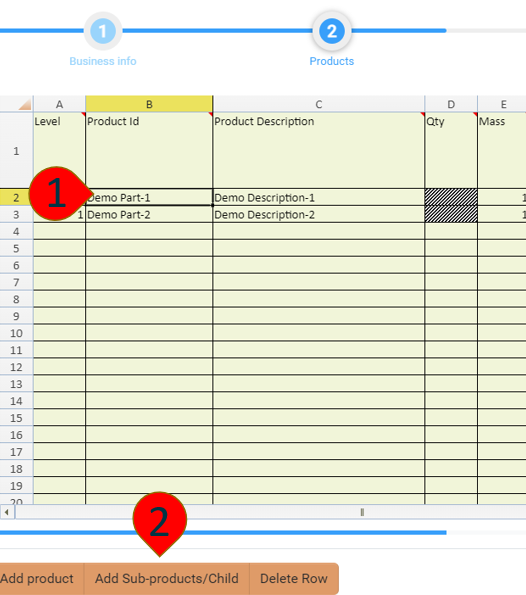
To add a new sub-product to an existing product:
-
pick the existing product
-
pick
Add Sub-Products/Child
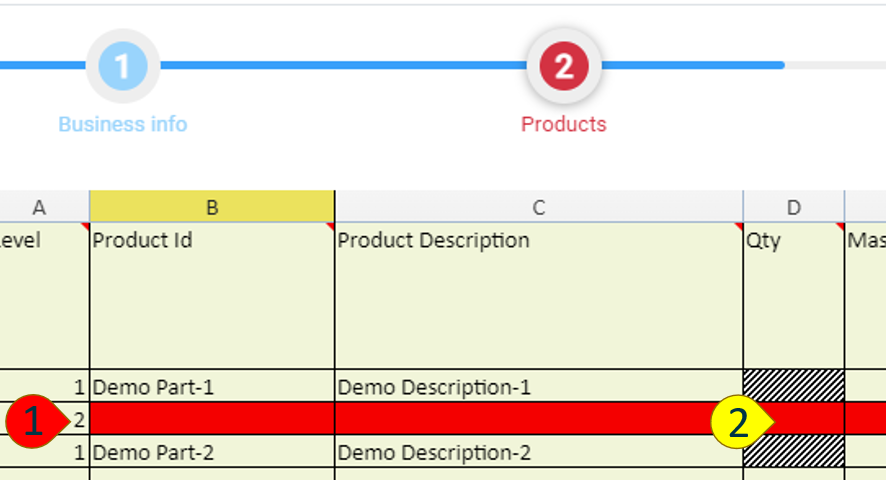
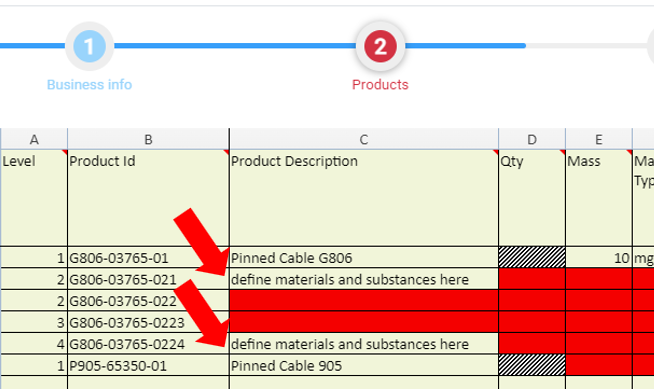
A new row will appear at Level 2. All mandatory fields (in red) must be completed.
Qty will also appear as a mandatory field.
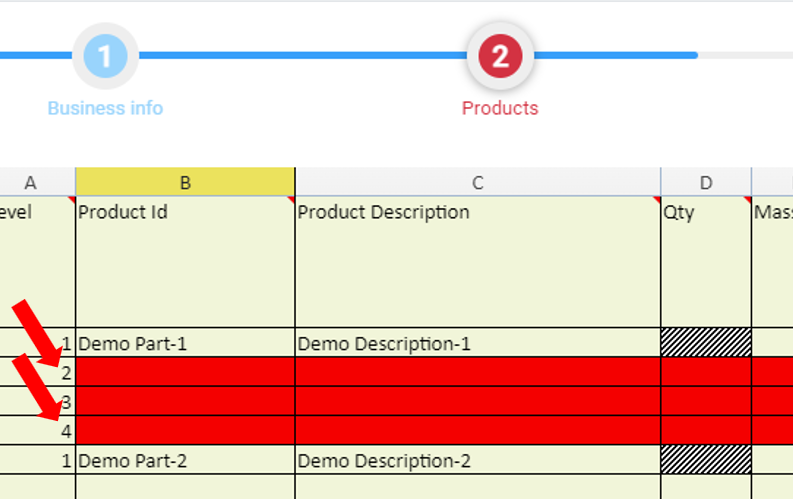
You can add as many sub-products as necessary to define the structure of your product.
Level 1 in this example is the top and Level 4 is the bottom where any materials and substances will be defined if needed.
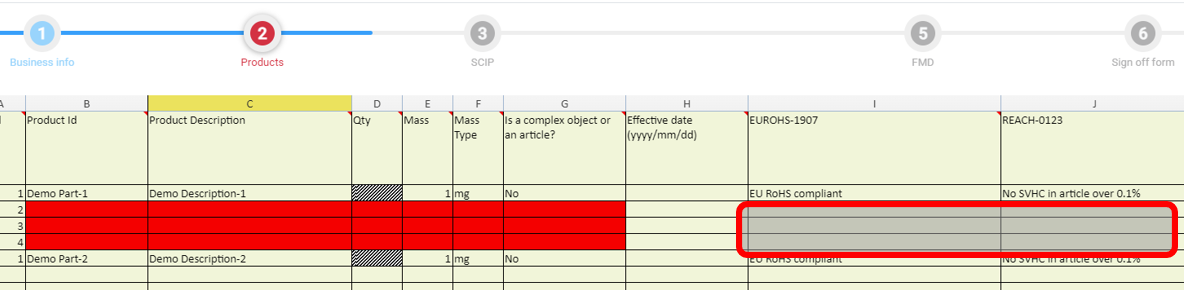
You will only have to make Query List declarations for the products at Level 1. i.e. Only fields filled in red are mandatory.
In this example, if we are completing a Material Summary or FMD:
-
G806-03765-021 is the bottom level of a tree where materials and substances will be defined
-
G806-03765-0224 is the bottom level of another tree where materials and substances will be defined
-
do not define materials and substances at the middle steps G806-03765-022 and G806-03765-0223
You must declare if the product Is a complex object or an article?
Typically, if you declare a sub-product as an article, the top level product should not be declared as an article.
In this example:
-
G806-03765-021 is the article not G806-03765-01
-
no other sub-product contains a REACH SVHC
-
you will not have to enter SCIP information for P905-65350-01
End of Section